Layers
Create a Layer, assign a Run to a bucket range, and understand current traffic reservations.
Overview
A Layer is a shared bucket space used to decide which users are eligible for a Run's analysis. Experiments can use separate ranges in that space to coordinate mutually exclusive analysis populations.
This tutorial creates Checkout experience with key checkout-experience, then assigns Simplify checkout / run-1 to the first half of the Layer. It uses the same First Project / Dev environment as Metrics and Experiments.
You can create the Layer before the experiment exists. To complete the association steps, prepare the experiment and its Bayesian Run using Create a Bayesian Run.
Create the Layer
- Confirm the project and environment in the header.
- Open Layers under Release Decision and click New layer.
- Enter Name:
Checkout experienceand Key:checkout-experience. - Check Assignment unit. In the current UI it is read-only and fixed to
user.keyId. - Enter Description:
Shared analysis space for checkout experiments. - Click Create layer.
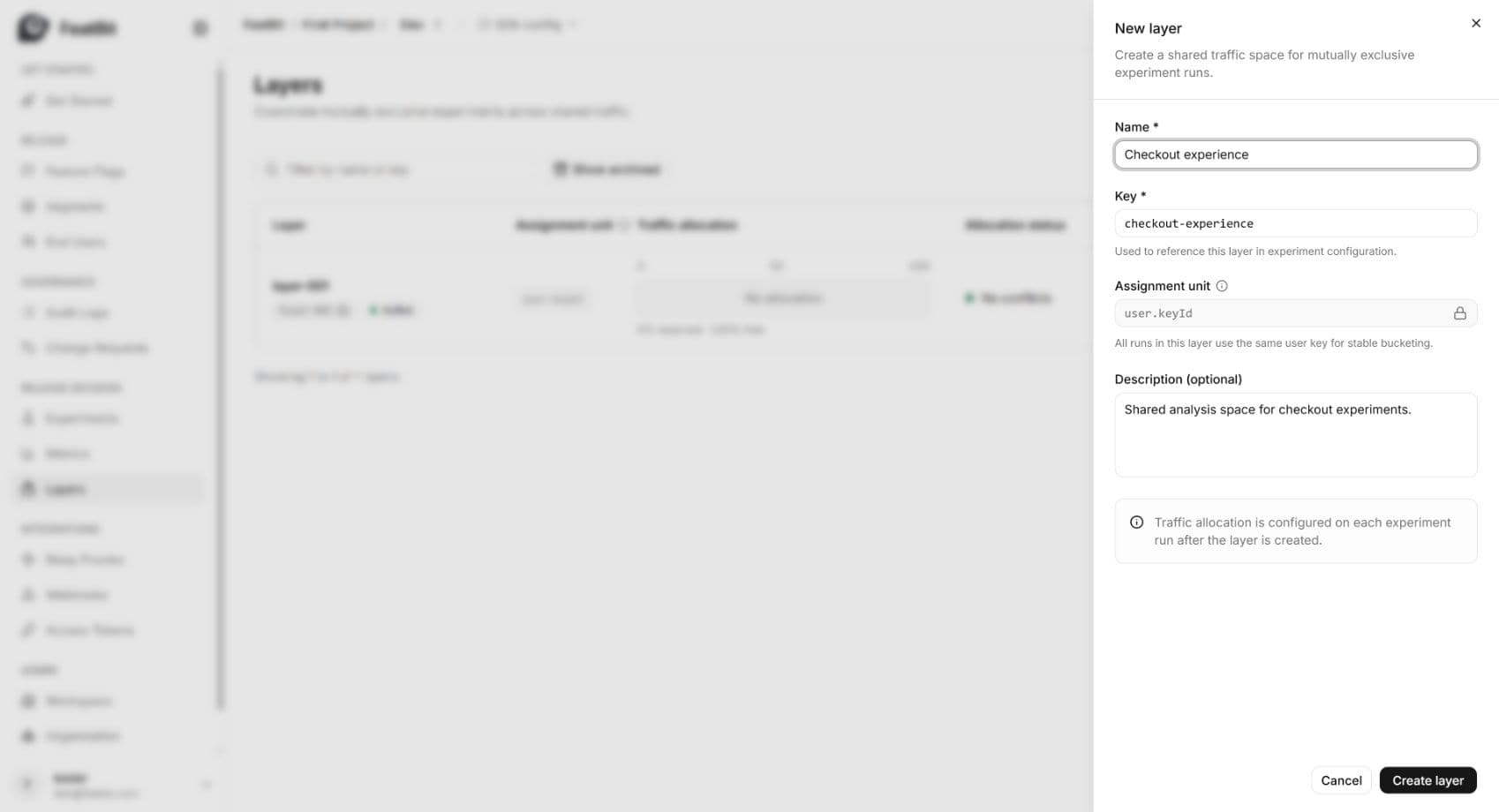
The Layer appears as Active. Until a Run reserves a range during a current observation window, the allocation bar shows No allocation.
Assignment unit identifies the user consistently for bucketing. In the .NET SDK example, FbUser.Builder("customer-1234") supplies the user key that corresponds to user.keyId. Reuse that ID for exposure and outcome events. All Runs in the Layer use the same assignment unit.
Edit and verify the Layer
- In the Layer row, click Edit.
- Confirm the saved name and assignment unit. The key cannot be changed after creation.
- Change Description to
Shared analysis space for checkout experiments, assigned by stable user ID. - Click Save changes, wait for the editor to close, and refresh.
- Reopen Edit to confirm the description persisted, then close it with Cancel.
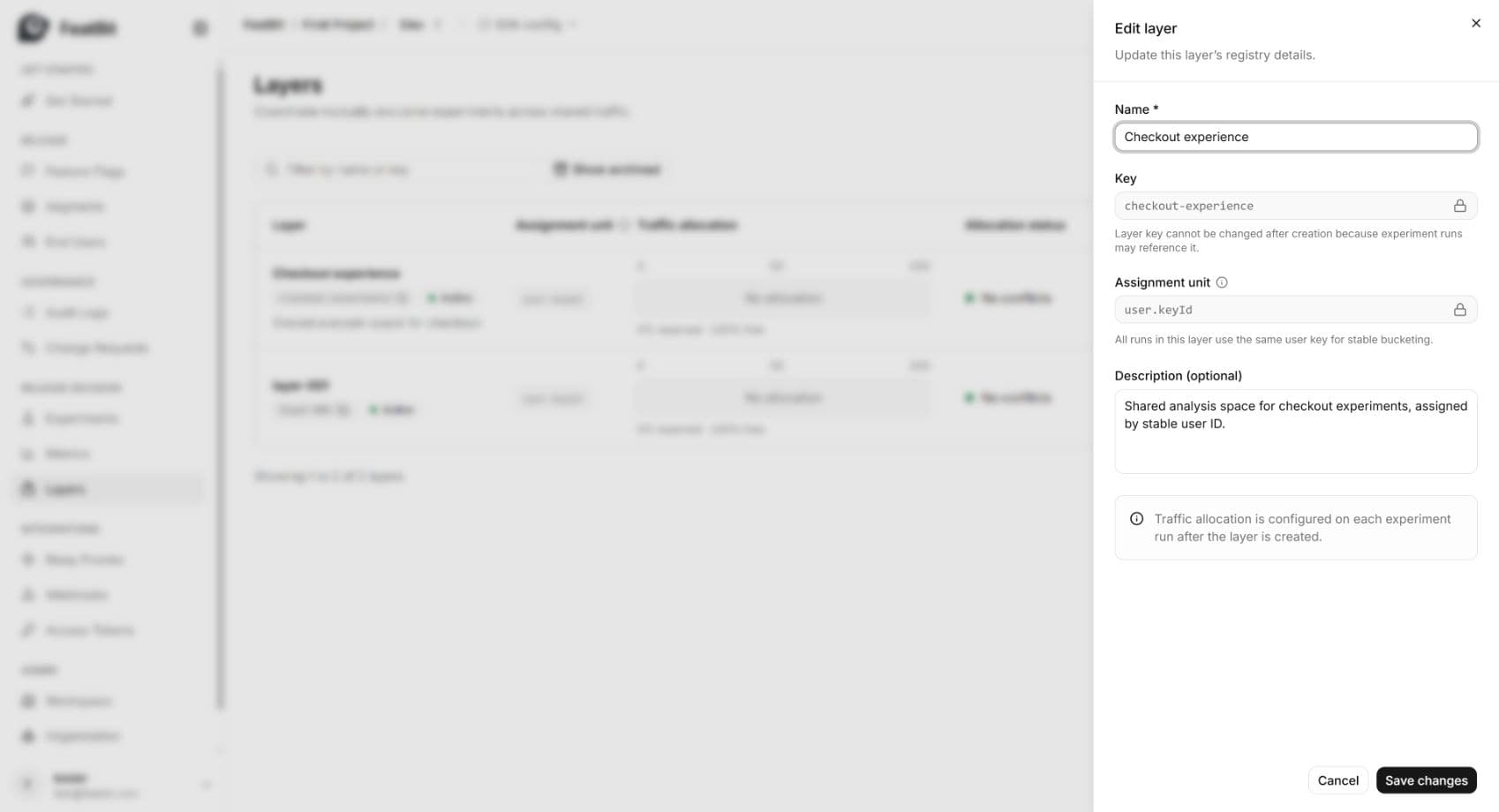
Changing this description does not allocate traffic. The bucket range belongs to a Run.
Associate a Run with the Layer
- Open Experiments → Simplify checkout → Measuring and select
run-1. - Under Experiment traffic assignment, click Edit assignment. Creating the Run alone does not save a Layer association.
- Confirm the variation roles: Control is the flag variation named Control (
false), and the checked Treatment is the variation named Treatment (true). - Under Layer eligibility, select Checkout experience (checkout-experience).
- Keep Assignment unit as
user.keyId. Set Bucket start to0and Bucket end to50. - Under Analysis sampling, keep Control and Treatment at
100%. Leave Audience filters empty for this example. - Click Save changes. Refresh the experiment and reopen Edit assignment to verify the saved values.
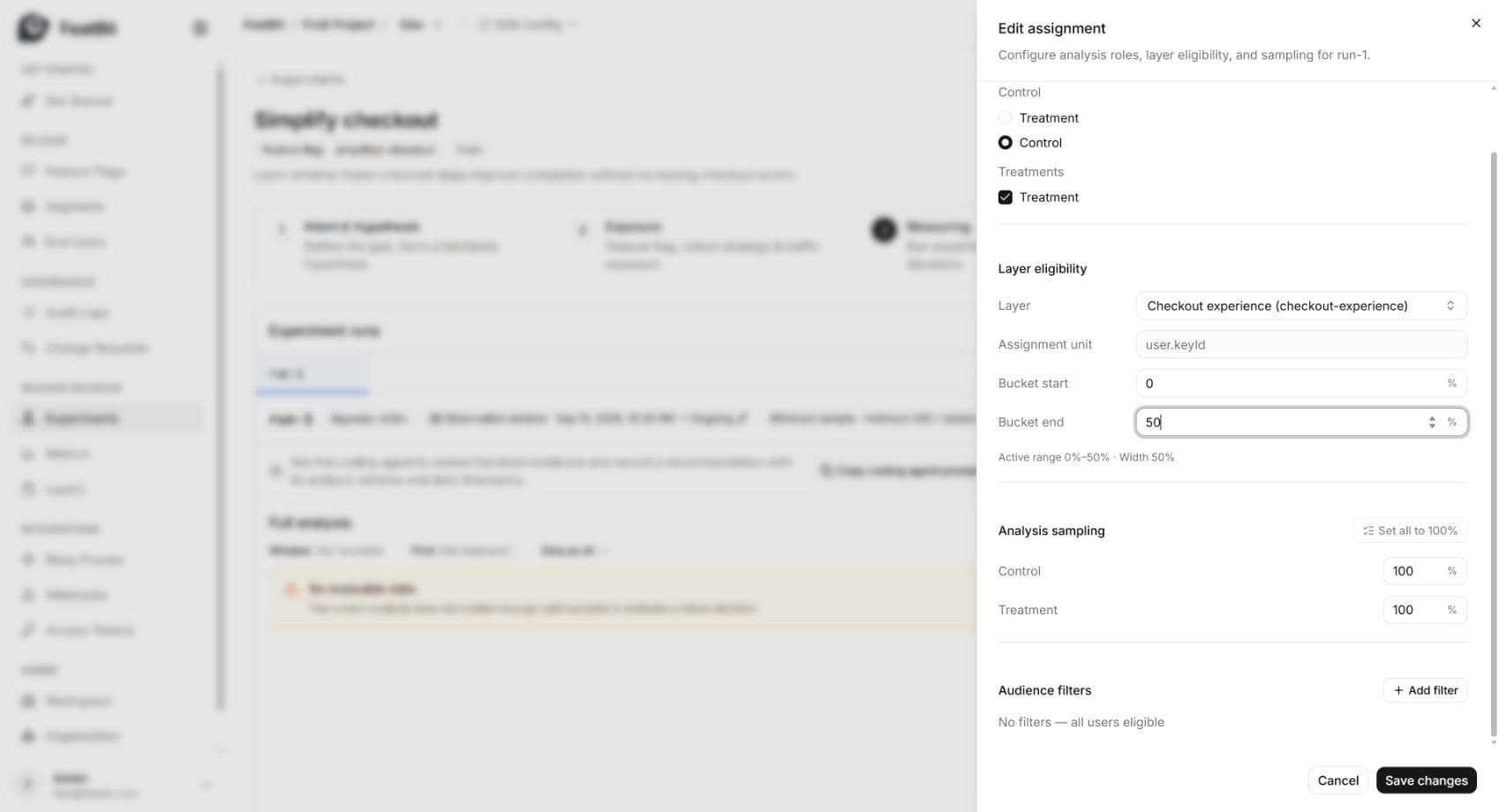
The saved summary shows Active range 0%–50% · Width 50%. The range includes its start and excludes its end: [0, 50).
Distinguish eligibility, serving, and sampling
These settings answer different questions:
| Setting | What it controls | This example |
|---|---|---|
| Layer range | Which users are eligible for the Run's analysis, based on stable bucketing. | First 50% of the checkout-experience Layer. |
| Feature flag variation rollout | Which variation the application actually serves when it evaluates the flag. | simplified-checkout serves Control and Treatment at 50/50. |
| Analysis sampling | How much of each eligible variation's traffic is retained for analysis. | 100% for both variants. |
Assigning a Run to a Layer does not change the flag's rollout. Users outside this Run's Layer range can still receive either flag variation; their data is excluded from this Run's analysis. Do not prefilter SDK users yourself to imitate the Layer.
For example, this walkthrough evaluated the flag for 4,000 demonstration users. The analysis included 1,982 users after Layer eligibility: 994 Control and 988 Treatment. A 50% range does not guarantee exactly half of a finite user population or identical group sizes.
Check current reservations
- Return to Layers and search for
checkout-experienceusing Filter by name or key. - Check Experiment runs for Simplify checkout,
run-1, and0–50%. - While the Run's observation window covers the current time, inspect the allocation bar and Allocation status.
While run-1 was collecting events with No fixed end, the Layer showed 50% reserved · 50% free and No conflicts:
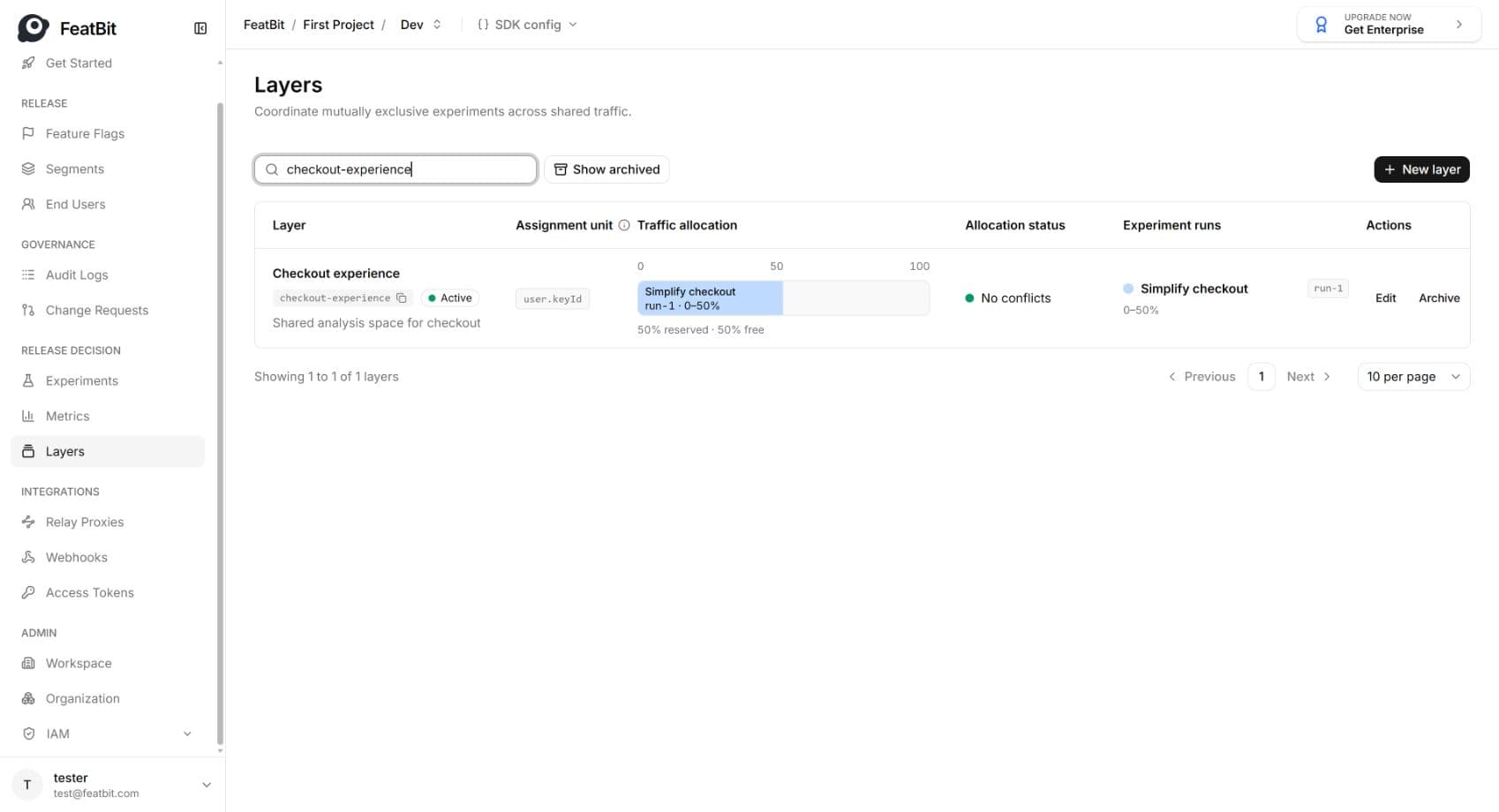
Interpret the labels as follows:
- Reserved is the part of the Layer occupied by Runs whose observation windows cover the current time.
- Free is the remaining unreserved space.
- No conflicts is the allocation status reported for this configuration. Here, only the tutorial Run is associated with this Layer.
- No allocation means no range is currently reserved; it does not mean all historical Run associations were removed.
For additional experiments, choose non-overlapping ranges and inspect Allocation status before using them. This walkthrough does not create a conflicting Run.
Understand what happens when the window ends
After event collection, set an end time as shown in Experiments. Once the observation window has ended:
- Refresh Layers and search for
checkout-experienceagain. - Confirm that Simplify checkout / run-1 remains associated with
0–50%. - Confirm that the current allocation bar now shows No allocation, 0% reserved · 100% free, and No conflicts.
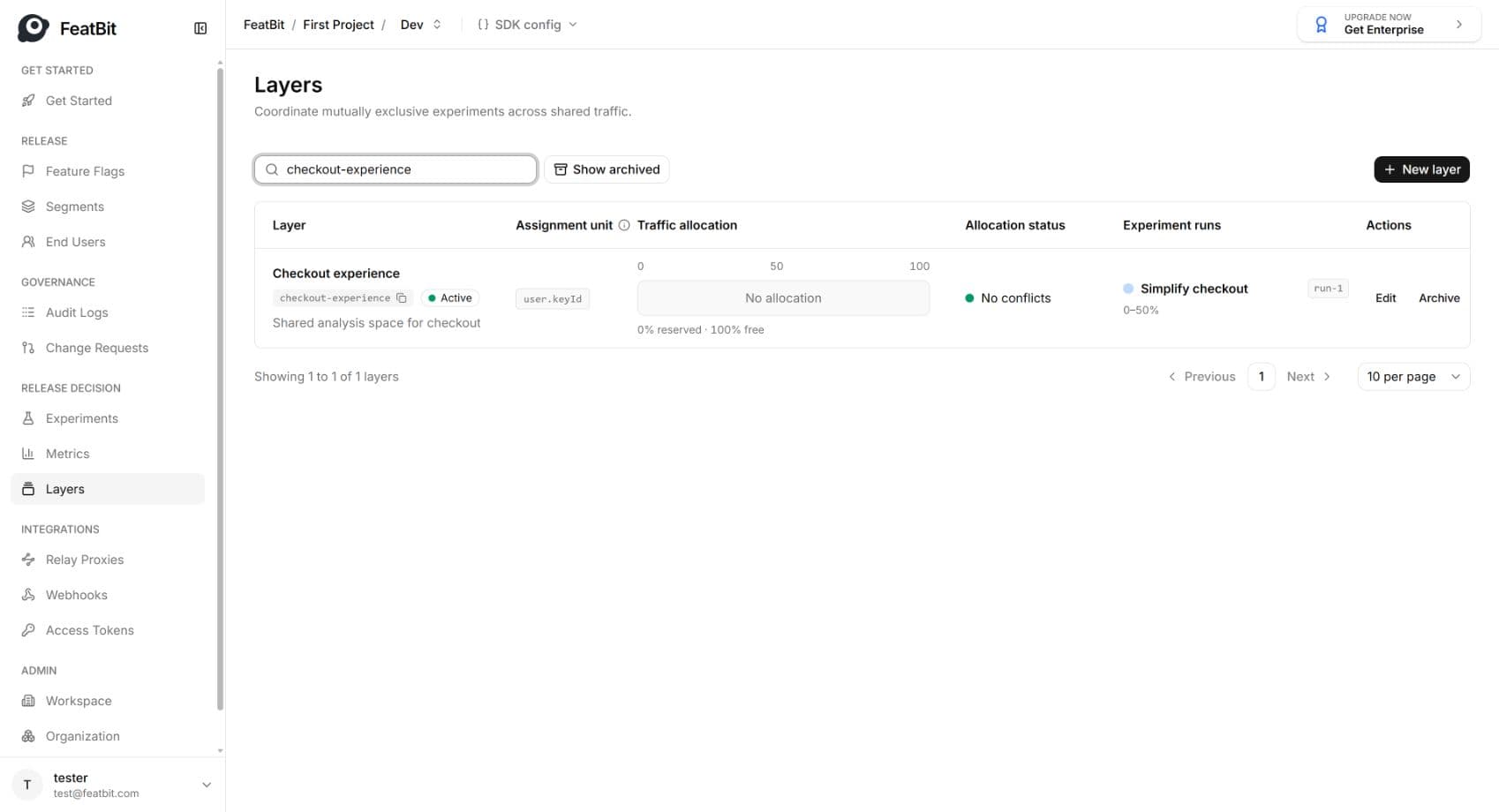
The finished Run still uses its saved Layer range when analyzing events in its observation window. The allocation bar describes current reservations, not the number of users previously analyzed. Ending the window also does not turn off the feature flag.
Next step
Continue with collecting and analyzing experiment data. Keep the Layer range, flag rollout, and analysis sampling settings consistent throughout the observation window.