Permision Access Control (RBAC)
Organization Level Access Control
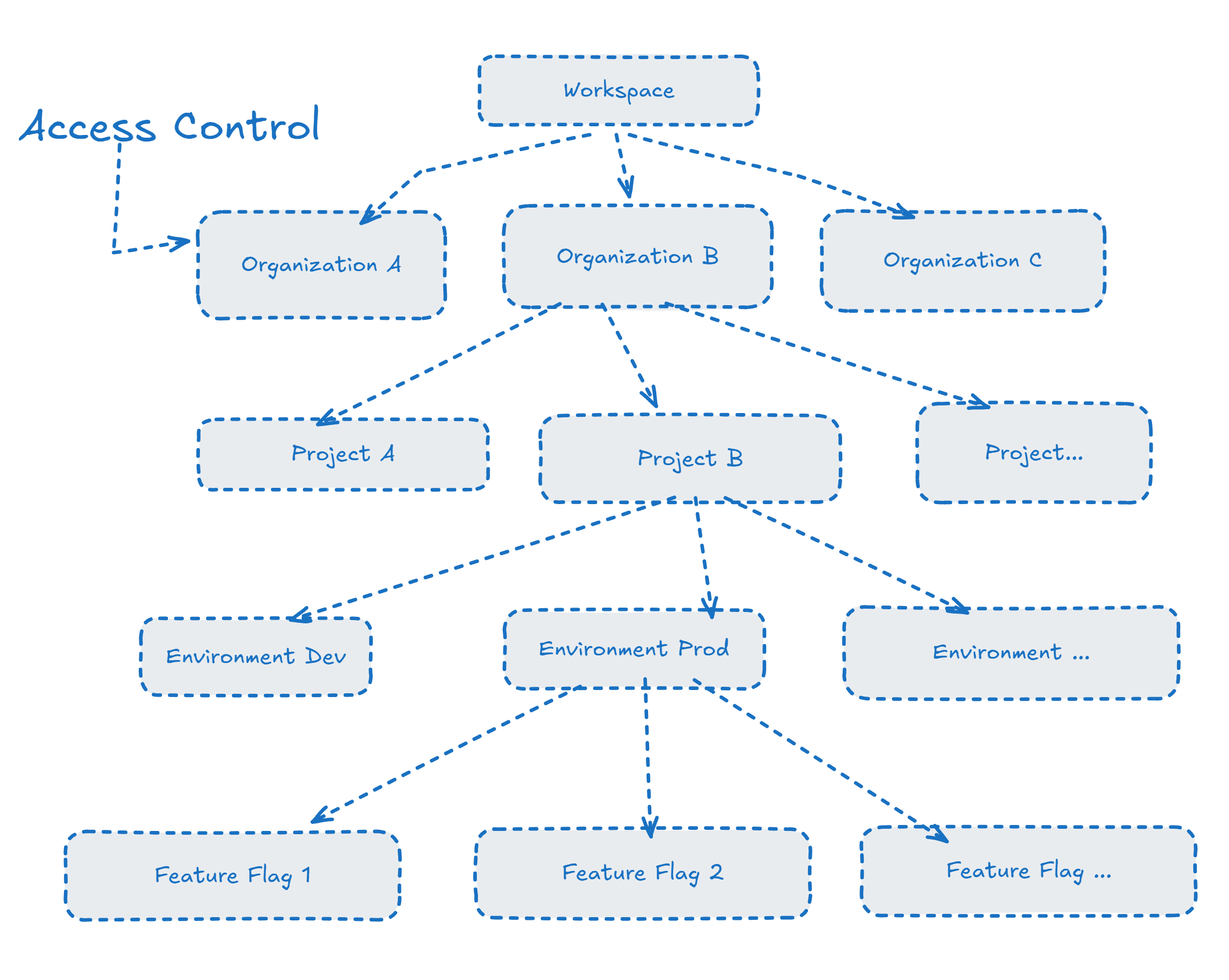
Once you installed the FeatBit in your infrastructure, you actually are the owner of a workspace. Each workspace could have multiple organizations. Each organization could have multiple projects. Each project can have multiple environments.
For the access control, we start at the organization level. You can control who can access the organization, projects under the organization, and environments under each project, and also the feature flags under each environment.
Prerequisites
Before you start to manage access control, you should:
- Have members created in your organization. You can refer to Team Management to add members.
- Have groups (member collections) created in your organization. You can refer to Group Management to add groups.
Quick Start
You can go section Example Walkthrough directly to see a complete example of how to manage access control for an organization with multiple projects and multiple teams.
Project Access Control
After you switch to the organization you want to manage, you will see all projects under this organization as shown below:
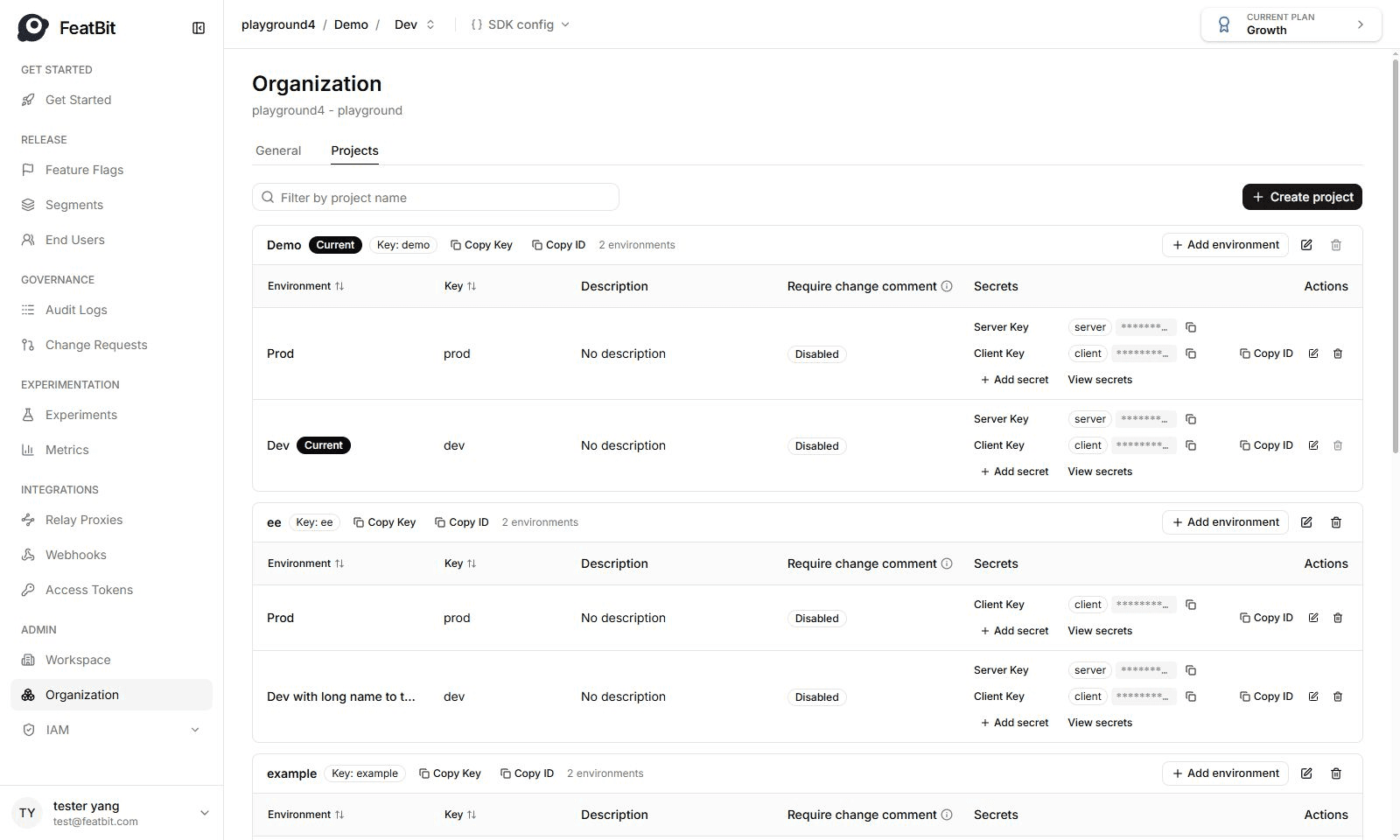
In the next sub-sections, we will show you how to manage access control for projects under this organization.
Enable User Access to Specific Projects
- Go to the
Policiespage underIAMmenu. - Click on
Add policybutton, input the policy name, key and description, then clickSave. - In the policy detail page, click on
+ Add permissionbutton to add a new permission- In allow or deny selector, choose
Allow. - Choose
Projectas the control-level (resource type). - Choose
Specific resources - Select the project you want to allow access to in resource selector.
- In action selector, choose
CanAccessProject.
- In allow or deny selector, choose
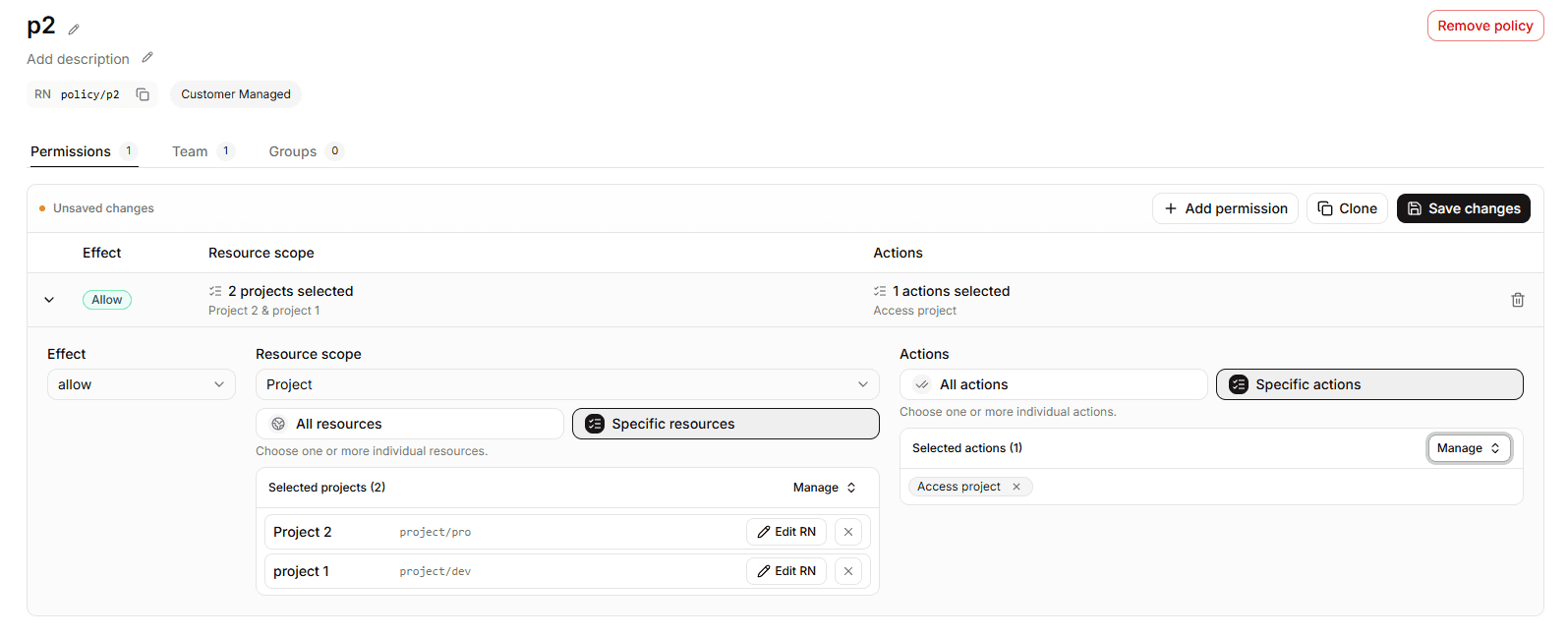
- Click Save changes to save the permission.
- Go to
TeamorGroupstab to assign this policy to members or groups.
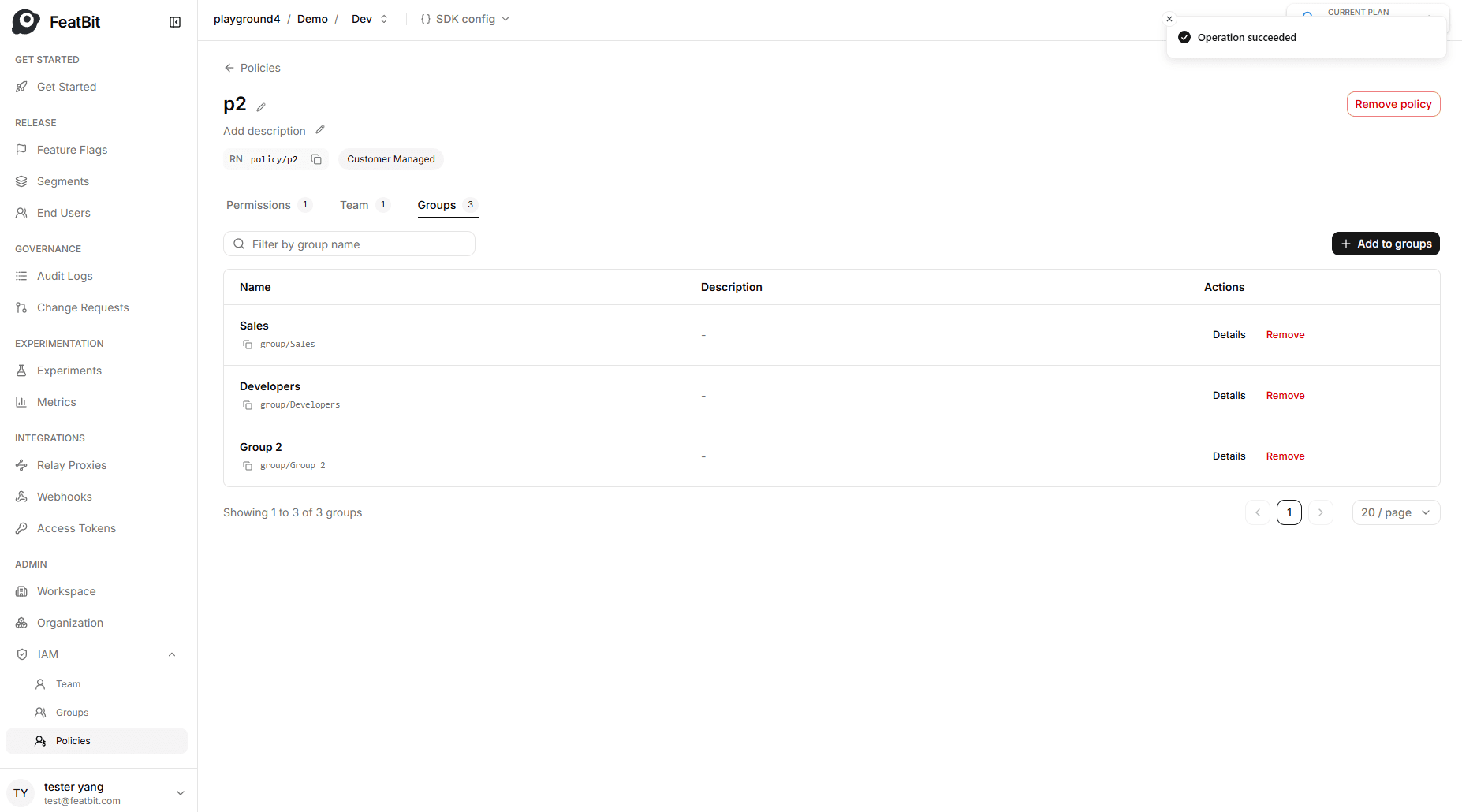
In the picture above, we assign the policy/allow-access-project-a policy to all groups that need to access Project A.
Set Project Management Permissions
For groups like Project Maintainers and Project Owner, they need more permissions to manage the project, such as creating environments, creating feature flags, etc.
- Go to the
Policiespage underIAMmenu. - Click on
Add policybutton, input the policy name, key and description, then clickSave. - In the policy detail page, click on
+ Add permissionbutton to add a new permission- In allow or deny selector, choose
Allow. - Choose
Projectas the control-level (resource type). - Select the
project/devin resource selector to assign management permissions fordev. - In action selector, assign all permissions that the group needs. E.g. all permissions for project owner.
- In allow or deny selector, choose
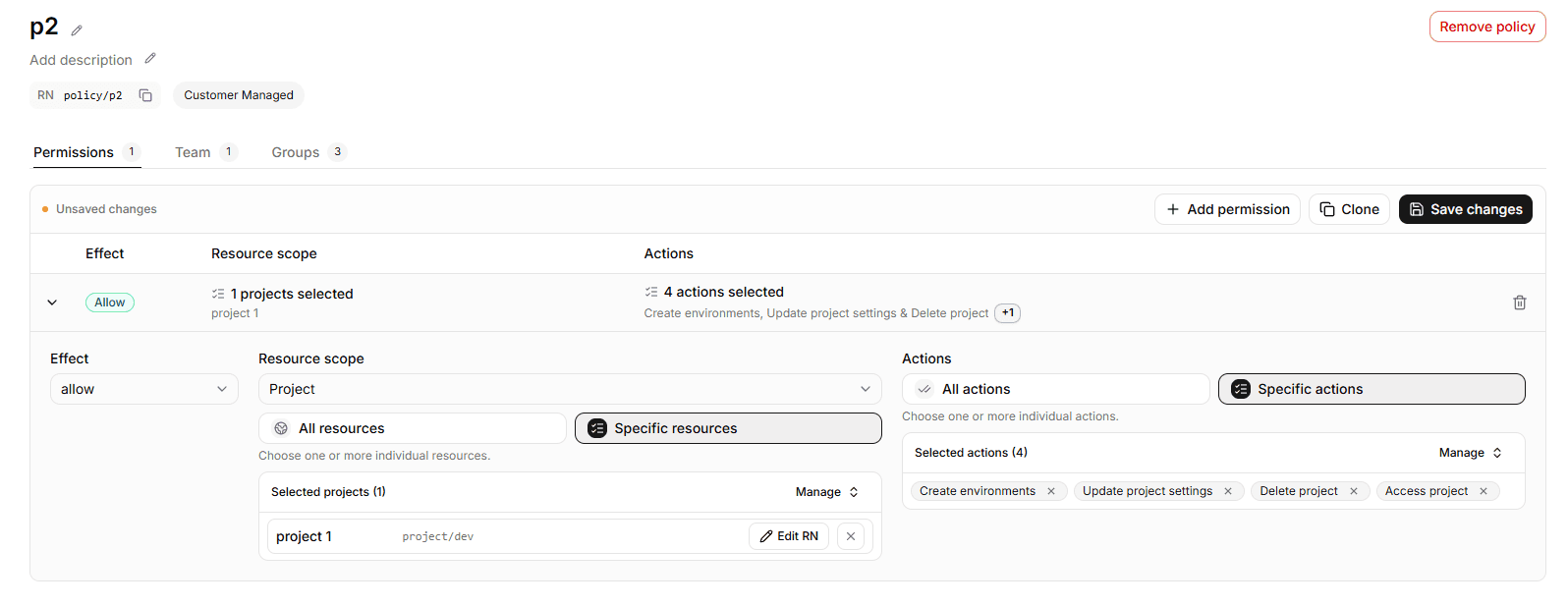
- Click Save changes to save the permission.
- Go to
TeamorGroupstab to assign this policy to members or groups.
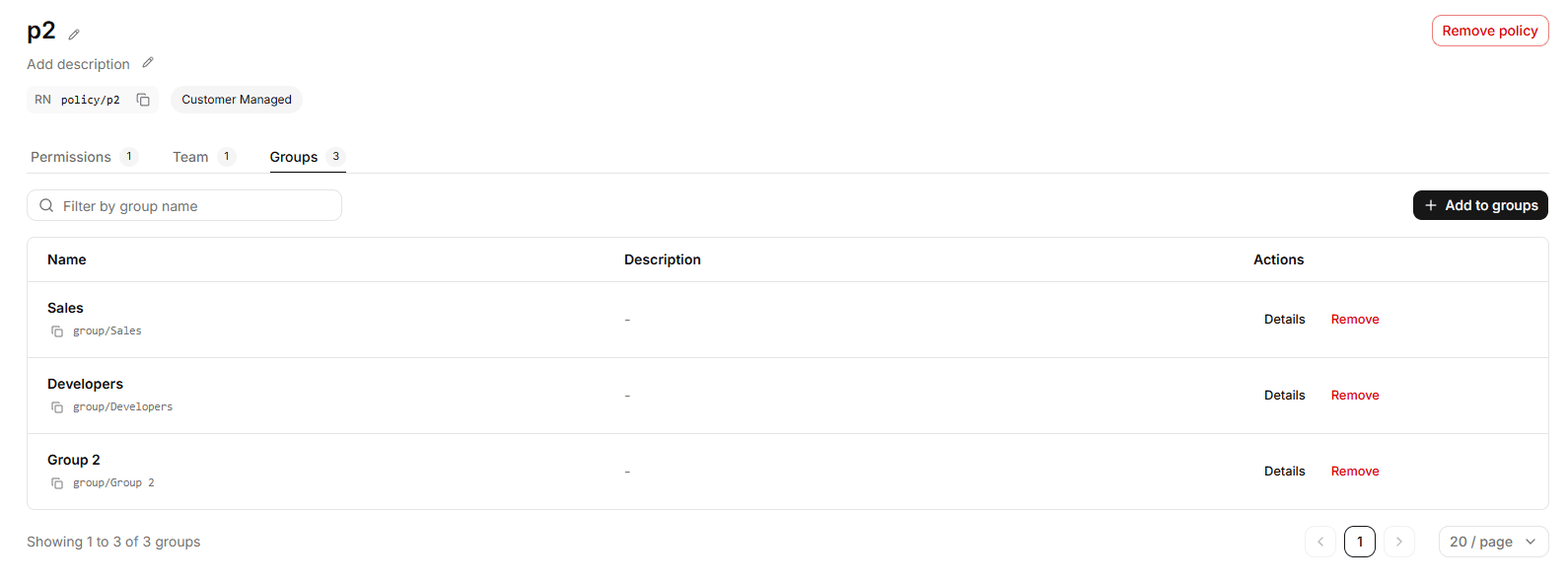
As shown in the picture above, we assign the policy/p2 policy to Sales group. Because only project owner should have full management permissions for the project, such as deleting project.
Environment Access Control
For each project, you can have multiple environments, such as development, staging, and production. You can also control who can access each environment and what management permissions they have for each environment.
For example, developers of Project A can see all environments under Project A, but they can only create and manage feature flags in the development environment. They can only read feature flags in the production environment.
Enable User Access to Specific Environments
- Go to the
Policiespage underIAMmenu. - Click on
Add policybutton, input the policy name, key and description, then clickSave. - In the policy detail page, click on
+ Add permissionbutton to add a new permission - Add a project access permission first, if not already added:
- Add an environment access permission:
- In allow or deny selector, choose
Allow. - Choose
Environmentas the control-level (resource type). - Select the environment you want to allow access to in resource selector.
- In action selector, choose
CanAccessEnvironment.
- In allow or deny selector, choose
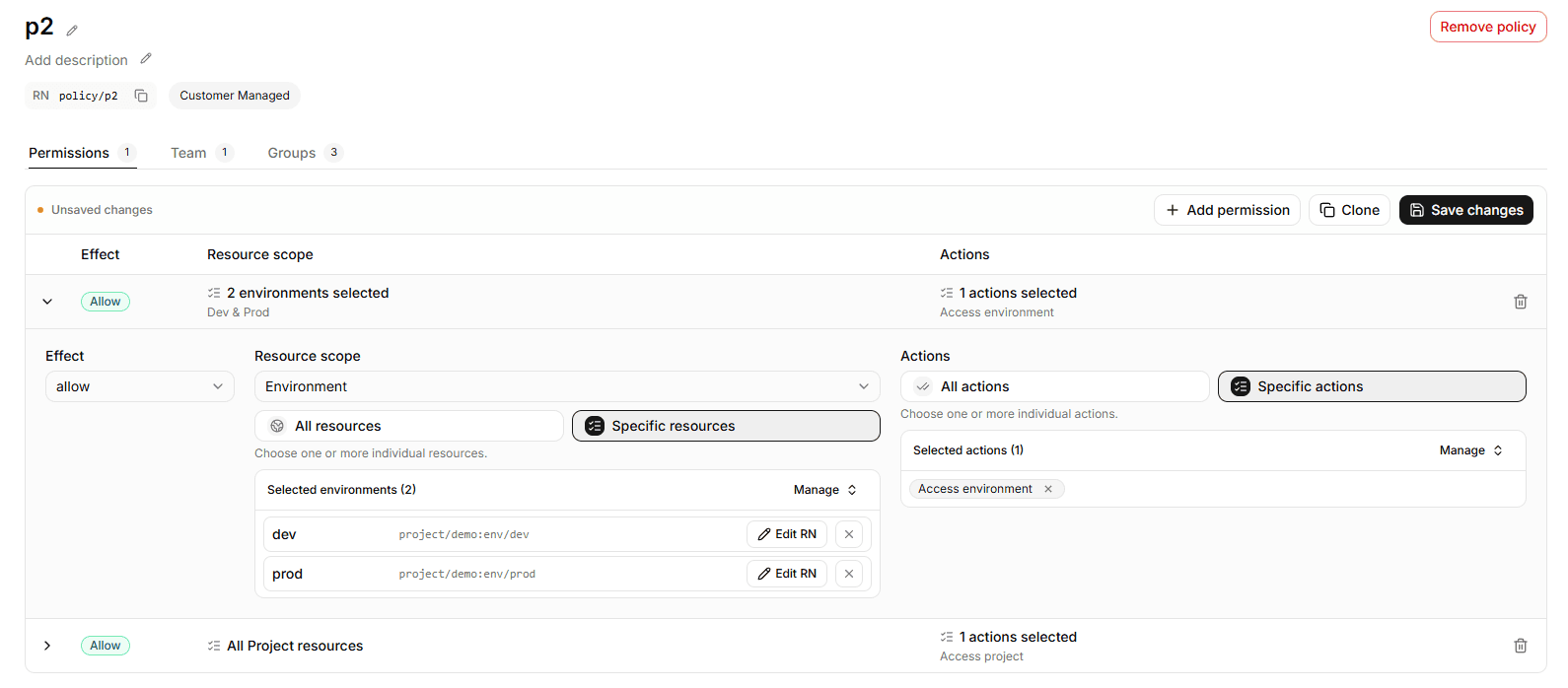
As shown above, we create a policy to allow access to dev and prod environment in Project A.
- Click Save changes to save the permission.
- Assign this policy to members or groups in
TeamorGroupstab.
As shown above, we assign the policy to the Sales related groups. They should all able to read feature flags in both dev and prod environments.
Set Environment Management Permissions
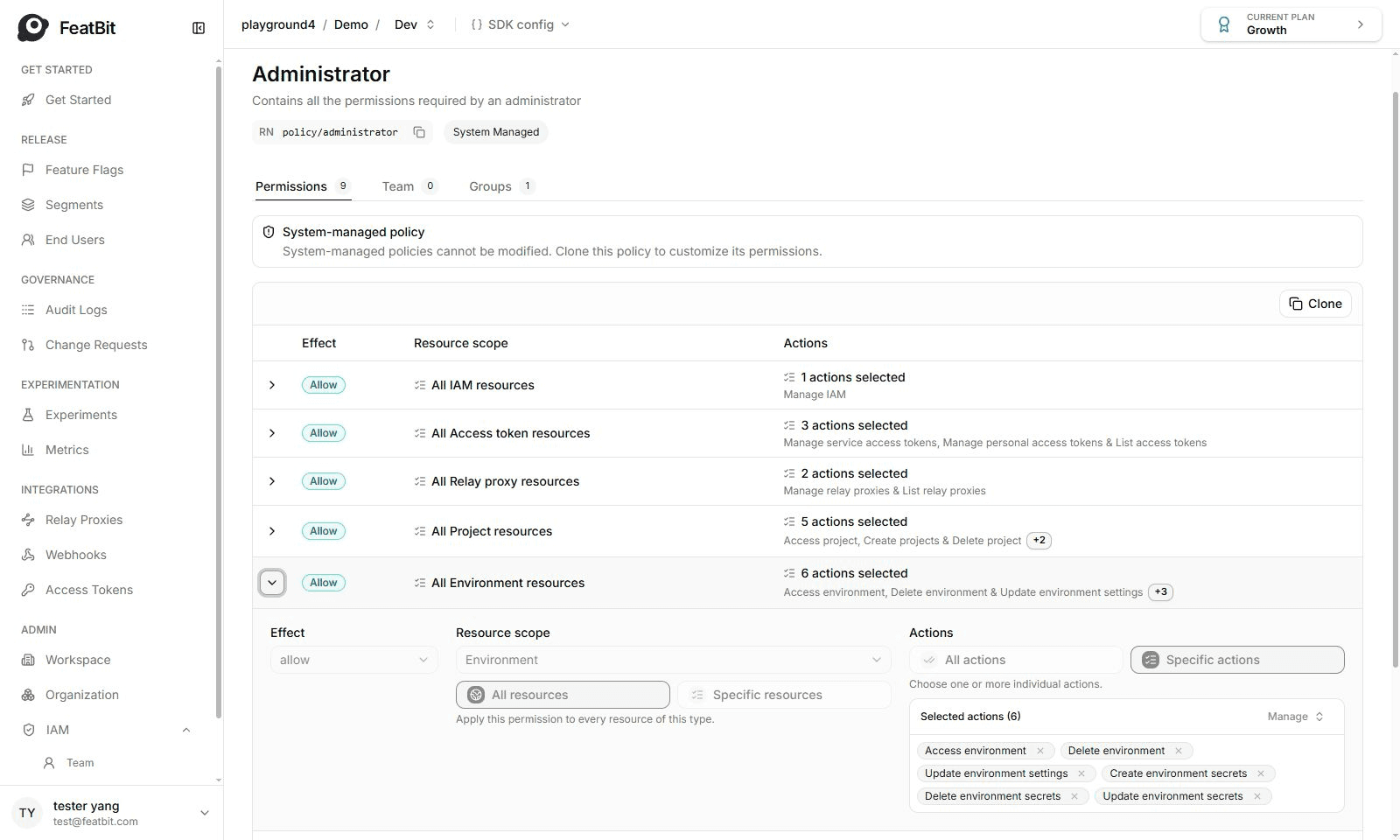
We may assign a environment maintainer roles to allow them to modify environment settings, such as update environment secret. In this case, we need to create a policy to allow them to manage the environment, as image below:
- In allow or deny selector, choose
Allow. - Select
Environmentas the control-level (resource type). - Select the specific environment in resource selector.
- In action selector, choose
DeleteEnvSecret,CanAccessEnvandUpdateEnvSettings. - Save the permission and assign the policy to the related groups.
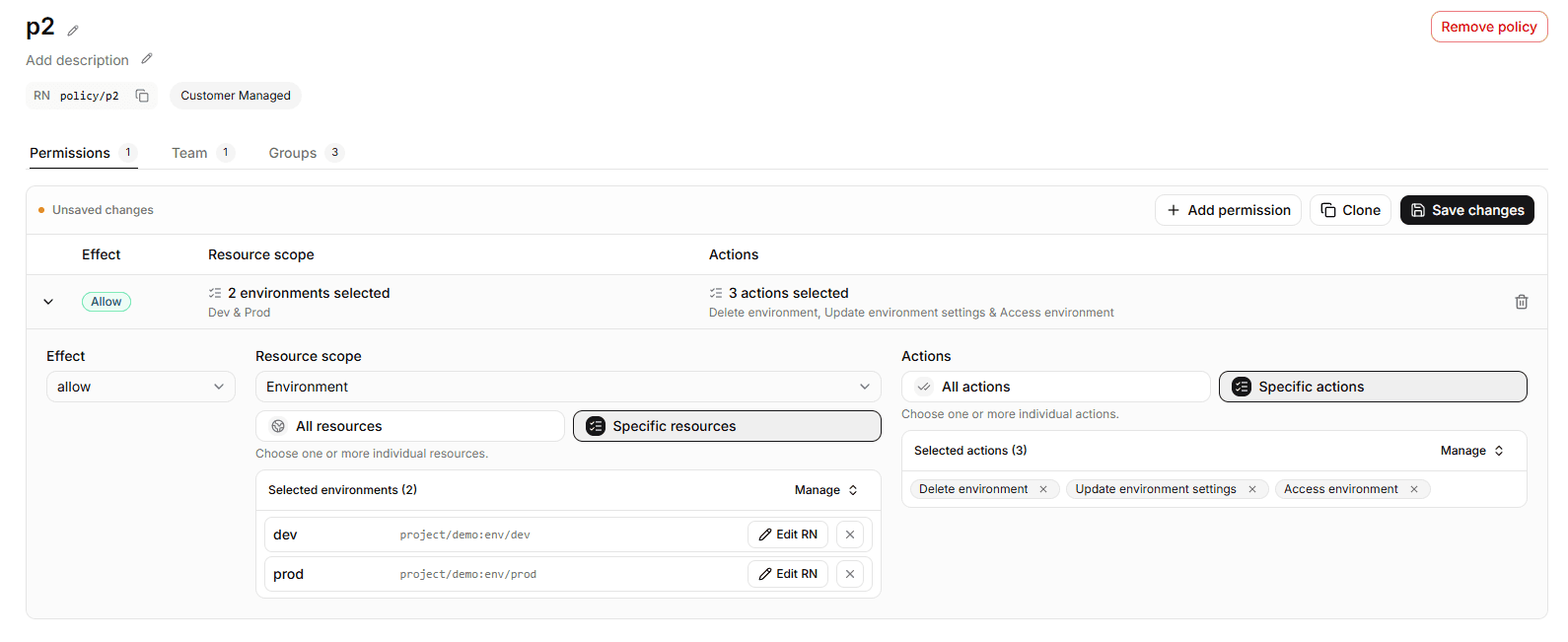
As shown above, we assign the policy to the member project-a-owner@featbit.com, who should be able to update environment settings.
Feature Flag Access Control
Before read or operate a feature flag access control, make sure the user has access to the project and environment where the feature flag belongs to.
Enable User to Operate Feature Flags of Specific Projects/Environments
We will create a policy that includes only permission settings for feature flag in a specific project/environment.
- Go to the
Policiespage underIAMmenu. - Click on
+ Add policybutton, input the policy name, key and description, then clickSave. - In the policy detail page, click on
(+)icon to add a new permission- In allow or deny selector, choose
Allow. - Choose
Feature Flagas the control-level (resource type). - Select
All resources. - In action selector, choose
All actions.
- In allow or deny selector, choose
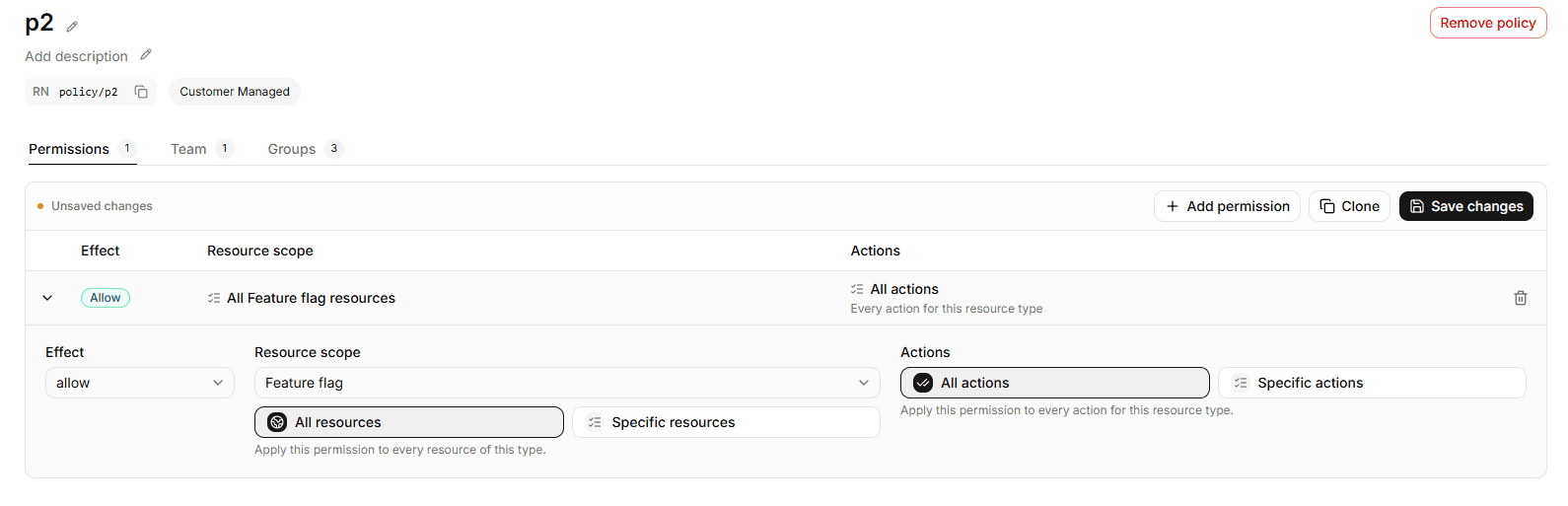
- Click Save to save the permission.
- Go to
TeamorGroupstab to assign this policy to members or groups that need to operate feature flags in the specific project/environment.
Example Walkthrough
Context
Imaging that in an organization, we have multiple projects. We have the following requirements:
- A specifc member that own the
Project A: Can do everything forProject A. - QAs can access both
Project AandProject B, but they can only view feature flags, not operate them. - PMs in the group
PM Team Acan do everything for feature flags inProject A, except delete feature flags. - Developers in the group
Dev Team A:- Can do everything for feature flags in
Project A,devenvironment. - Only view feature flags in
Project A,prodenvironment, and only allow to operate one specific feature flag.
- Can do everything for feature flags in
- External developers in the group
External Devs:- Can only view and operate feature flags in
Project A,devenvironment.
- Can only view and operate feature flags in
Solution
To achieve the above requirements, we need to create the following policies:
- Policy
Project A Maintainerto allow full access to Project A (all environments) for given members. [See PolicyProject A Maintainer]. - Policy
Project A QAto allow read-only access to Project A (all environments). [See PolicyProject A QA]. - Policy
Project A PMto allow full access to Project A's all feature flags except create and archive action. [See PolicyProject A PM]. - Policy
Project A Devto allow [See PolicyProject A Dev]:- Full access to Project A's feature flags in
devenvironment. - Read-only access to Project A's feature flags in
prodenvironment. - Allow operate a specific feature flag in
prodenvironment.
- Full access to Project A's feature flags in
- Policy
Project A External Devto allow [See PolicyProject A External Dev]:- Read and operate access to Project A's feature flags in
devenvironment.
- Read and operate access to Project A's feature flags in
Policy Project A Maintainer
- Create a policy named
Project A Maintainer. Resource Name (RN) ispolicy/policy/Project A Maintainer. - Add a permission for project level access:
- Control Level:
Project - Resource Selector:
project/demo - Allow or Deny:
Allow - Actions: all actions for project owner.
- Control Level:
- Add a permission for environment level access:
- Control Level:
Environment - Resource Selector/Editor:
project/demo:env/dev,project/demo:env/prod - Allow or Deny:
Allow - Actions:
CanAccessEnv
- Control Level:
- Add a permission for feature-flag level access:
- Control Level:
Feature Flag - Resource Selector:
All resources - Allow or Deny:
Allow - Actions: all actions for feature flags.
- Control Level:
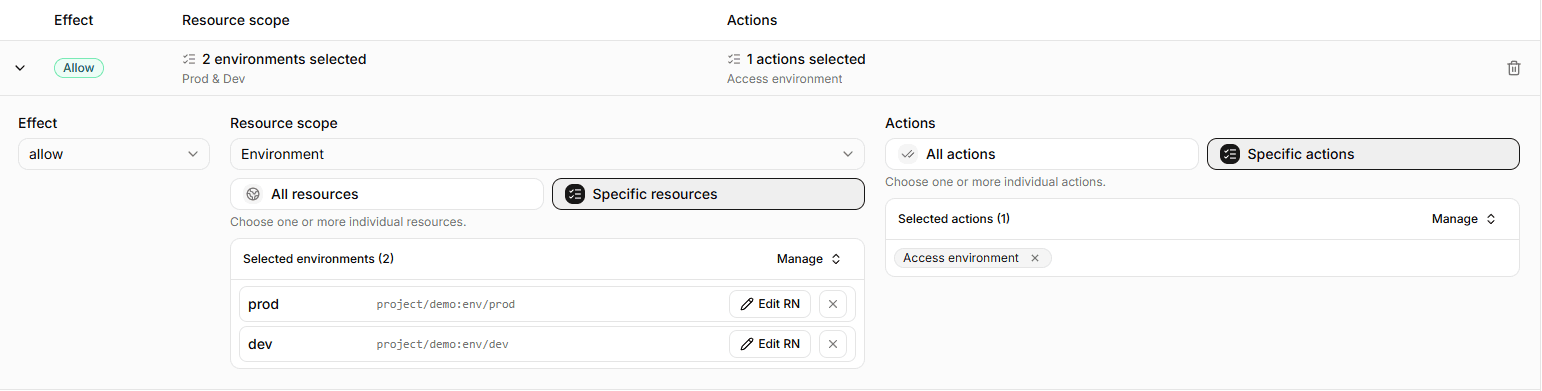

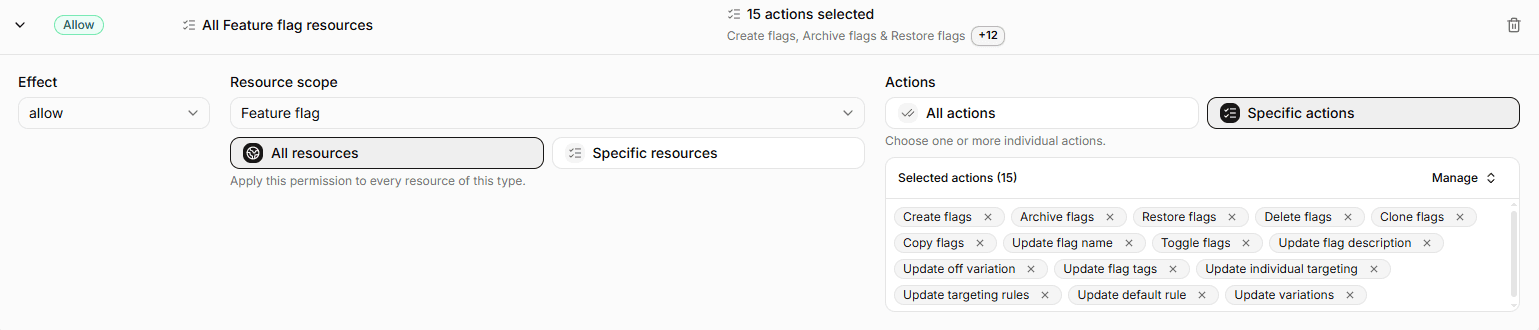 5. Save the policy and assign it to member
 33@gg.com

NOTE: Be sure that the member has removed their default policy assignments, otherwise they may still have more permissions than expected.
Policy Project A QA
- Create a policy named
Project A QA. Resource Name (RN) ispolicy/policy/Project A QA. - Add a permission for project level access:
- Control Level:
Project - Resource Selector:
project/demo - Allow or Deny:
Allow - Actions:
CanAccessProject
- Control Level:
- Add a permission for environment level access:
- Control Level:
Environment - Resource Selector/Editor:
project/demo:env/dev,project/demo:env/prod - Allow or Deny:
Allow - Actions:
CanAccessEnv
- Control Level:
- Save the policy and assign it to group
Project A QAs.
NOTE: Be sure that all members in QA groups have removed their default policy assignments, otherwise they may still have more permissions than expected.
Policy Project A PM
Other than policy Project A Maintainer, PMs should not have permissions to create, archive or delete feature flags in each environments in Project A. Other permissions are the same as maintainers.
- Create a policy named
Project A PM. Resource Name (RN) ispolicy/policy/Project A PM. - Add a permission for project level access:
- Control Level:
Project - Resource Selector:
project/demo - Allow or Deny:
Allow - Actions:
CanAccessProject
- Control Level:
- Add a permission for environment level access:
- Control Level:
Environment - Resource Selector/Editor:
project/demo:env/dev,project/demo:env/prod - Allow or Deny:
Allow - Actions:
CanAccessEnv
- Control Level:
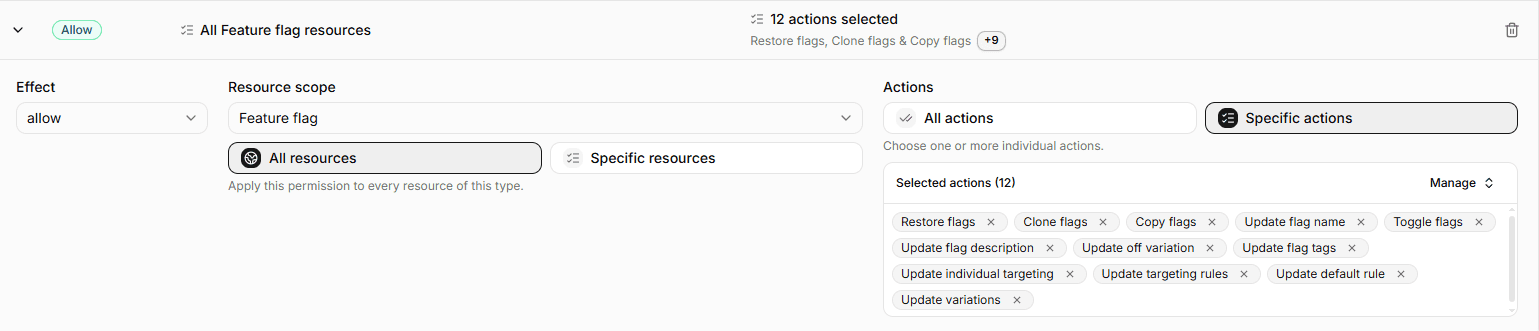
- Add a permission for feature-flag level access:
- Control Level:
Feature Flag - Resource Selector:
All resources - Allow or Deny:
Allow - Actions: all actions except
CreateFlag,ArchiveFlagandDeleteFlag.
- Control Level:
- Save the policy and assign it to group
PMs. - Assign the policy to all members in the group
PMs.

NOTE: Be sure that all members in Project A PMs groups have removed their default policy assignments, otherwise they may still have more permissions than expected.
Policy Project A Dev
Different from the policies above, this subsection shows how to combine two policies to meet the requirements for developers in Project A.
- Policy
Project A QA(created above) to allow read-only access to Project A (all environments). This policy already meets the read-only access requirement for theprodenvironment. - Policy
Project A Dev:- Full access to
devenvironment. - Allow to operate a specific feature flag in
prodenvironment.
- Full access to
Create the policy Project A Dev as below:
- Create a policy named
Project A Dev. Resource Name (RN) ispolicy/Project A Dev. - Add a permission for feature-flag level access in
devenvironment:- Control Level:
Feature Flag - Resource Selector:
All resources - Allow or Deny:
Allow - Actions: all actions for feature flags.
- Control Level:
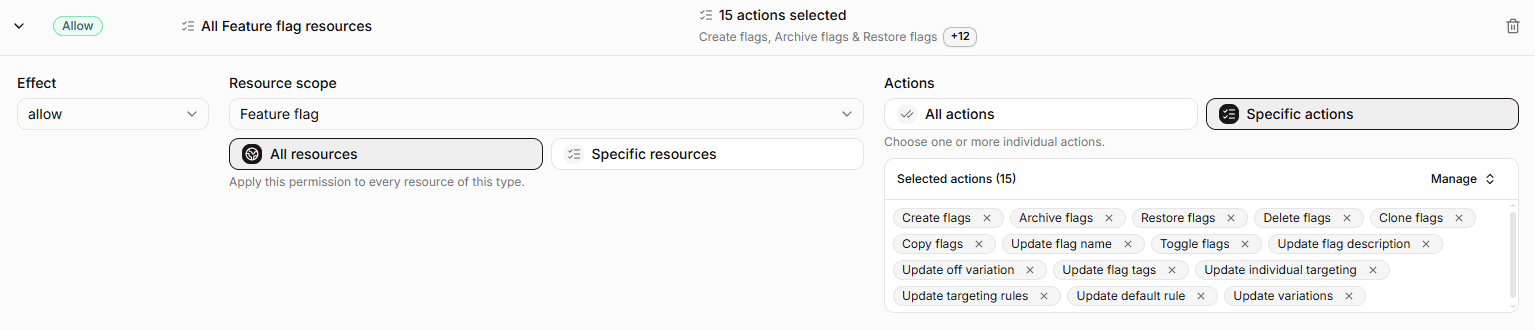
- Add a permission for specific feature-flag in
prodenvironment:- Control Level:
Feature Flag - Resource Selector:
All resources - Allow or Deny:
Allow - Actions:
UpdateFlagTags,UpdateFlagDefaultRule,UpdateFlagIndividualTargeting,UpdateFlagTargetingRules
- Control Level:

- Save the policy.
- Assign both policies
Project A QAandProject A Devto groupProject A Devs.
This combination may not satisfy your feeling caused by Project A QA name, but it shows you another way to achieve complex access control requirements by combining multiple policies.
Policy Project A External Dev
We create all permissions in a single policy for external developers.
- Create a policy named
Project A External Dev. Resource Name (RN) ispolicy/Project A External Dev. - Add a permission for project level access:
- Control Level:
Project - Resource Selector:
project/demo - Allow or Deny:
Allow - Actions:
CanAccessProject
- Control Level:
- Add a permission for environment level access in
devenvironment:- Control Level:
Environment - Resource Selector/Editor:
project/demo:env/dev - Allow or Deny:
Allow - Actions:
CanAccessEnv
- Control Level:
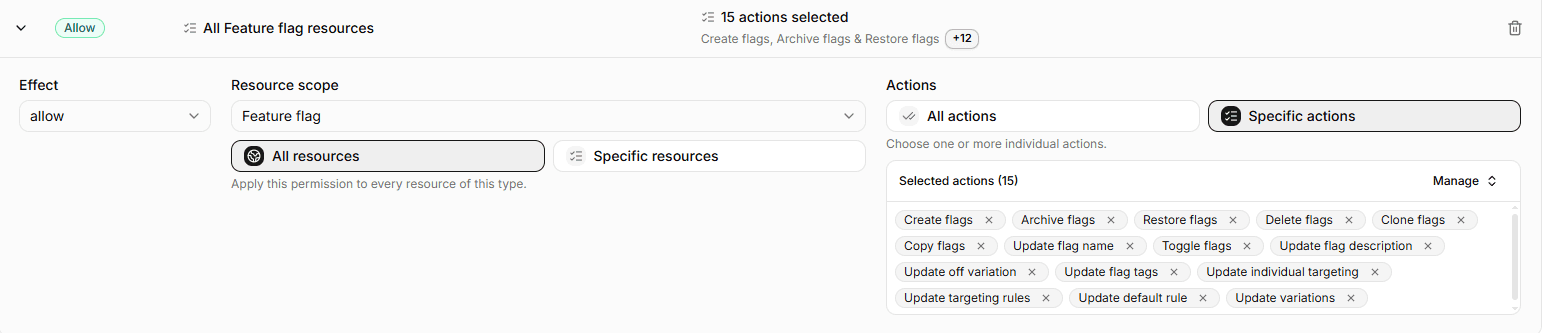
- Add a permission for feature-flag level access in
devenvironment:- Control Level:
Feature Flag - Resource Selector:
All resources - Allow or Deny:
Allow - Actions: all actions for feature flags.
- Control Level:

 5. Save the policy and assign it to group
 External Devs.
Conclusion
By following the above steps, we have successfully created and assigned policies to meet the access control requirements for Project A in our organization. Each group and member now has the appropriate permissions to access and manage feature flags according to their roles.
Please remember to regularly review and update the policies as needed to ensure that they continue to meet the evolving needs of your organization.
For any unexpected behaviors or issues, please join our Discord community or contact us by email at contact@featbit.co